
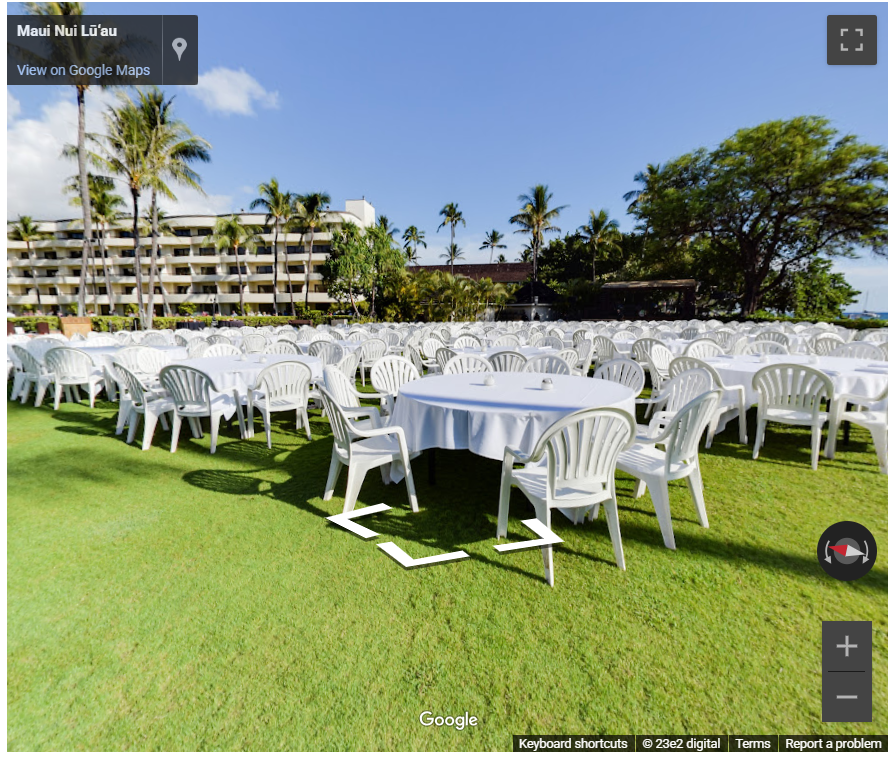
The competition is ever-increasing in Google’s search engine result page, as more businesses are becoming aware of the importance of optimizing their listings so that it appears at the top of the search results. With Google Virtual Tours, your business can differentiate itself from the rest by giving a 360-degree tour of your business to users without them actually being there.
How to Embed Google Street View Virtual Tour on WordPress
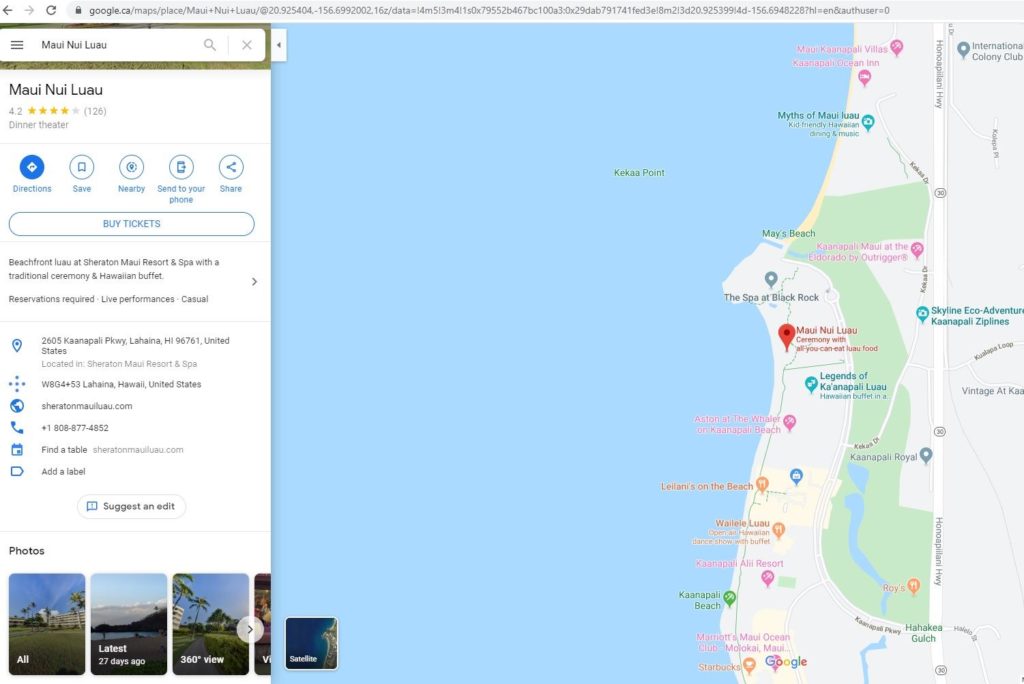
Step 1: Go to Google Maps and find your Google My Business Listing
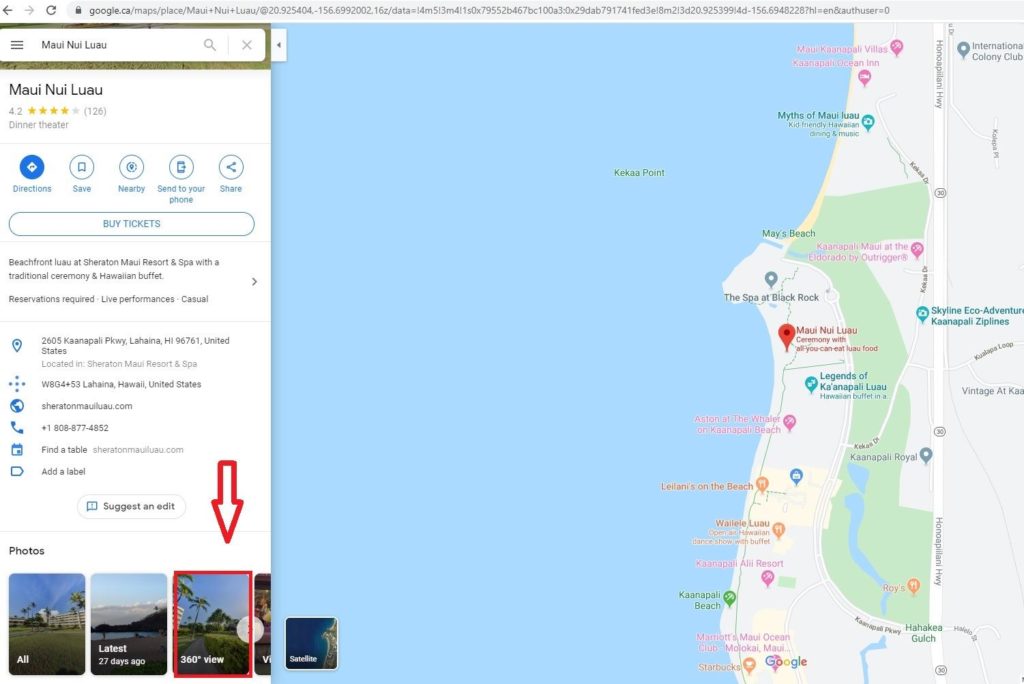
Step 2: Click on your Google 360 Virtual Tour Image
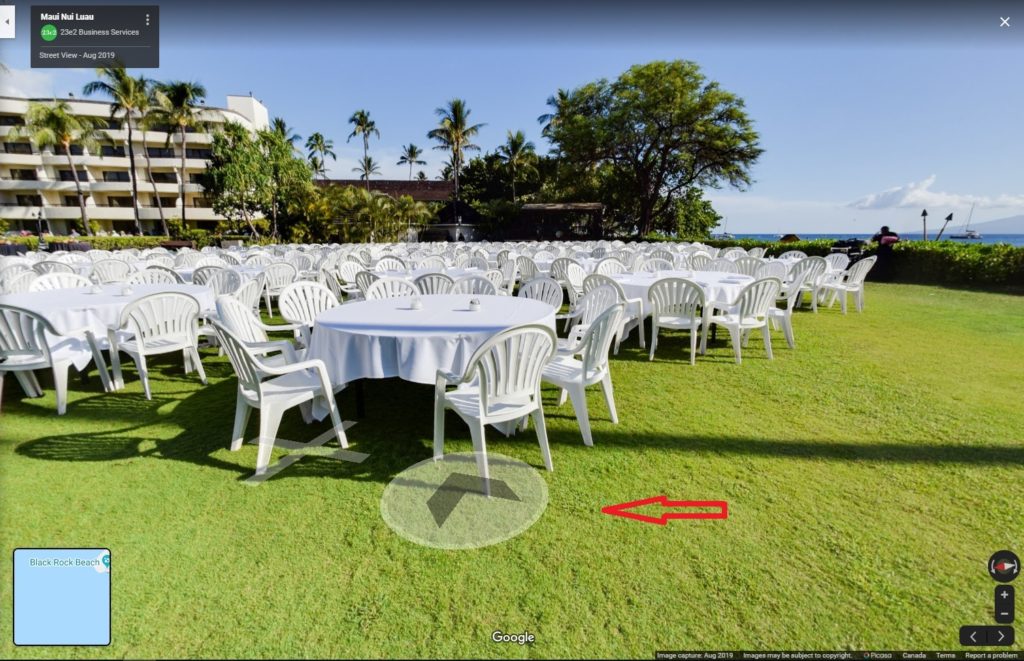
Step 3: Chose the Initial View of your Google Virtual Tour that will Appear on the Website
Step 4: Click on the 3 Dots in the Top Right Corner of your Virtual Tour Information and Select ”share or embed image”
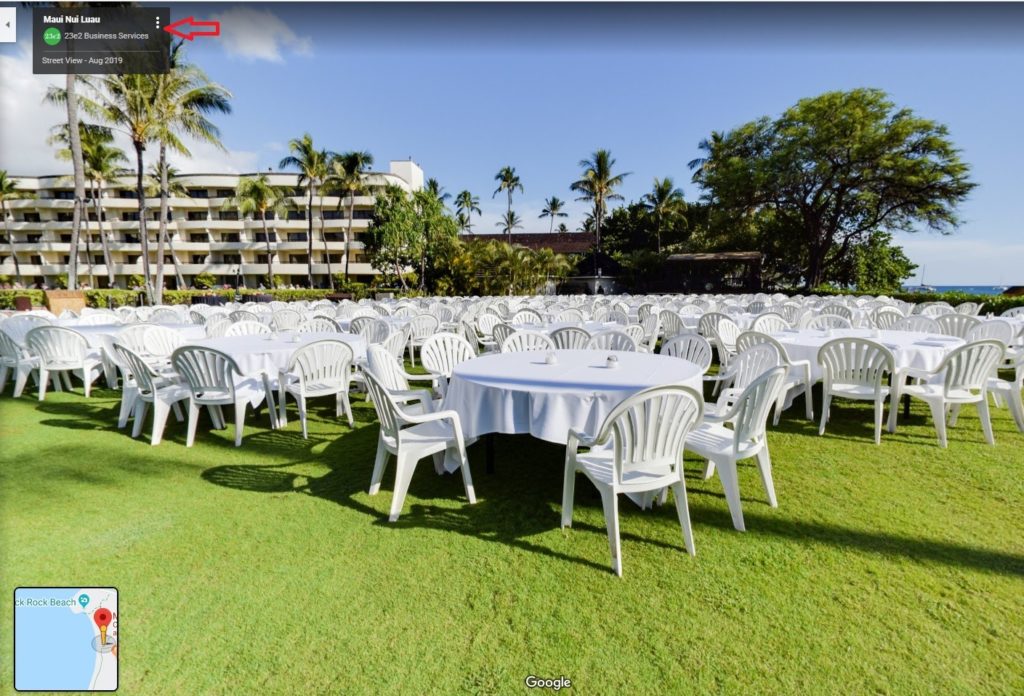
Step 5: Copy the embed code from Google Maps
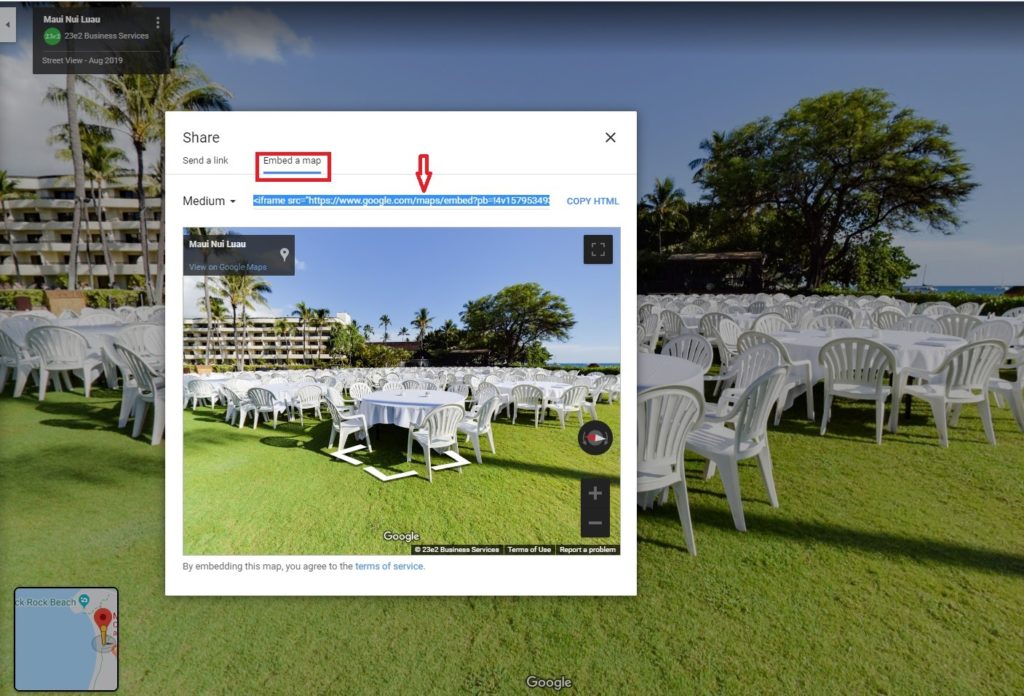
Step 6: Paste the embed code on your website
Unlike traditional search engines that list web pages as results, answer engines aim to provide immediate, direct responses to user queries.
For instance, when applying AEO strategies to ensure your content is optimized for AI-driven platforms, imagine asking ChatGPT, “What are the best waterproofing companies in Toronto?” You’d want strategies in place to ensure that your company gets mentioned in the response.
This involves creating content that directly answers common queries related to your industry, ensuring your business information is accurately reflected across relevant directories, and establishing your brand’s authority in the field of waterproofing.
1. Utilize Natural Language and Conversational Phrases: Craft your content using natural, everyday language that mimics how people naturally ask questions. This makes it easier for AI chatbots to understand and select your content as the best answer.
2. Focus on Long-Tail Keywords: These are longer and more specific keyword phrases that visitors are more likely to use when they’re closer to a point-of-purchase or when using voice search. This specificity can play to your advantage in appearing in AI chatbot results.
3. Regularly Update Your Content: AI systems favor current and regularly updated information. Keeping your content fresh and relevant not only helps with SEO but also ensures that AI chatbots view your business as a reliable source of information.
4. Optimize for Featured Snippets: These are highlighted search results that appear at the top of Google’s search results and aim to answer the searcher’s query right away. Structuring your content to be chosen as a featured snippet can also get it prioritized by AI chatbots.
5. Implement Schema Markup: This is a code you put on your website to help search engines return more informative results for users. When applied correctly, it can make your content more readily understood and categorized by AI, enhancing your visibility in chatbot responses.
6. Monitor Performance and Seek Feedback: Use tools to monitor how your content performs in search results and seek feedback on its effectiveness in answering queries. This will help you refine your approach to better align with how AI chatbots parse and prioritize information.
7. Engage on Social Media Platforms: AI chatbots often pull information from social media, so having an active and informative presence on these platforms can increase your visibility in chatbot responses. Ensure your social media profiles contain up-to-date contact information, business descriptions, and links to your website.
Set Up Business Profiles on Directories and Build Citations
Directories refer to digital platforms or databases that categorize and display businesses, offering crucial details like names, addresses, contact information, and provided services.
- Google My Business: An indispensable directory for any business looking to enhance local SEO and visibility in Google’s suite of services including Maps and Search, important for AI-driven queries about business locations and services.
- LinkedIn Company Directory: Especially for B2B companies, maintaining an up-to-date LinkedIn profile can enhance visibility in professional queries and is often considered by AI for business-related questions.
- TripAdvisor: For businesses in the hospitality and travel sectors, listings on TripAdvisor can significantly boost visibility in travel-related AI chatbot queries and recommendations.
- BBB (Better Business Bureau): Listing your business on BBB can add a layer of trust and authority, which AI systems consider when recommending businesses to users, especially for service-based queries.
- Industry-Specific Directories: Depending on your business niche, being listed in top-rated, niche-specific directories (e.g. Avvo for lawyers, Healthgrades for doctors) ensures that AI chatbots can find and recommend your services for specialized queries.
- Facebook Business Pages: As a widely used platform, maintaining a detailed Facebook Business page can help AI identify your business for social-related queries, especially as chatbots increasingly pull from social media data.
Establish Yourself as an Industry Expert

Embedding a Map or a Virtual Tour on the Squarespace website
After you completed steps 1 to 5, please do following steps:
- In Squarespace, open the editor for the page or post where you’ll place the file.
- Click an Insert Point and add a Code Block.
- Paste the embed code into the Code Block and click Apply.
- Click Save.
Embedding a Map or a Virtual Tour in a Blog Post on Blogger
After you completed steps 1 to 5, please do following steps:
- Open your posts on Blogger. A usual place to put a map is on the contact us page.
- Make sure you are in HTML editor mode. Go back to Google Maps and copy the HTML embed code from the Step 5 on this list. Paste the embed code on Blogger.
- A preview of the map will be available if you switch to compose mode, or you can preview the total page. Click the Publish button.
- Finally, view the post again to make sure that everything looks OK.
Embedding a Map or a Virtual Tour in the Sidebar
Blogger does not currently have a gadget or widget that will add a Google Map or Street View in your blog sidebar. However, you can add these to your sidebar with a simple procedure similar to the above method for adding to a blog post.
Firstly, copy the “iFrame” embed code. Set a custom width and height that will ensure the size of the map or tour fits into your sidebar. Go your blog dashboard and go to the Layout section.
Then, click to add a Gadget. Select “HTML/JavaScript gadget” in the options and paste the embed code into the content box. Click on Save.
That’s it, you have now added your business location to the blog sidebar.
Embedding a Google Street View Virtual Tour on Any Website
Google has provided a solution for developers to insert a code which enables any websites to display Google Map in an interactive form. The Maps Embed API allows users to incorporate interactive maps, or Street View photos onto their websites with just a simple HTTP request. Meaning that features such as indoor floor plans, directions, and Street View can also be implemented onto your website. Visitors can now preview your virtual tours straight from your website, regardless of which backend system you used to build your site. This creates a more enjoyable experience for visitors as they can get everything they need all in one place, as opposed to navigating to a different page to view your virtual tour.
Now, here’s a step-by-step guide on how you can insert Google Street View Virtual Tour onto any website:
Step 1: Search for a location on the Google Maps page on your preferred browser.
Step 2: Enter Street View mode, and click on the settings icon, which is located in the bottom right-hand corner.
Step 3: There is an option to embed images, as well as the necessary code to be applied.
Step 4: Take the code and apply it to your site onto the appropriate page.
And as simple as that, your virtual tour is now shared onto your website!
In addition, developers have the option to define a latitude and longitude or a panorama ID to specify a location and even the pitch of the camera. You can enjoy the freedom of embedding as much as you want as they are no usage limits.
Here’s how to insert the Google Street View virtual tour on any website.
The first step will be to search a location in the normal Google Maps page in your browser. Enter Street View mode, then click on the settings cog, which is in the lower right-hand corner. There is an option to embed your image, as well as the necessary code.
Take the code and drop it into your site on the appropriate page. You’ve now shared the virtual tour on your site.
As a developer, you have the option to specify a latitude and longitude or panorama ID to pick your location, and the pitch of the camera. There are no usage limits, so you can embed as much as you want.
How to get a Google Street View 360 Virtual Tour?
Scheduling a photo shoot to enhance your Google listing is easy.
Contact us today to learn how to get a virtual tour of your business up on Google.
A typical business receives 59 actions from their Google My Business listing each month.
16% of businesses receive more than 100 calls each month from GMB.
We can optimize your Google My Business listing to make it one of your primary online traffic sources.